Migrations in Heartcore

Migrating Databases and Media in Umbraco Heartcore

Guide: Moving a Hardcore Project Between Projects

To transfer a hardcore project from one project (Project_source) to another (Project_target), follow these steps:

  1. Move Content Nodes:
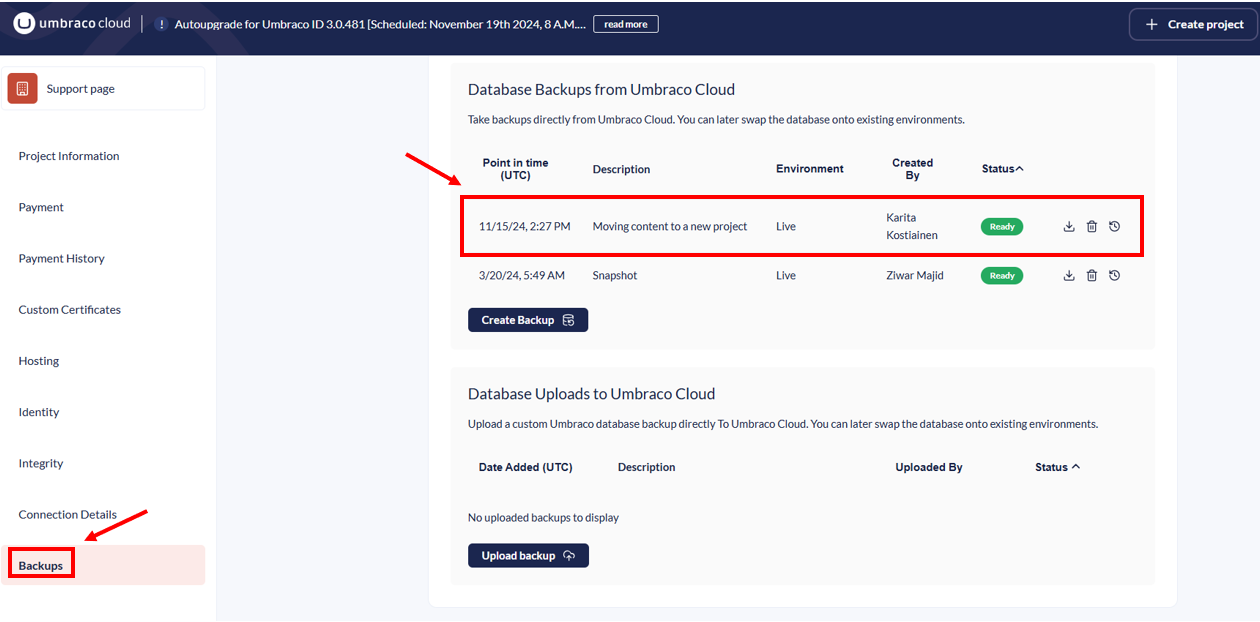
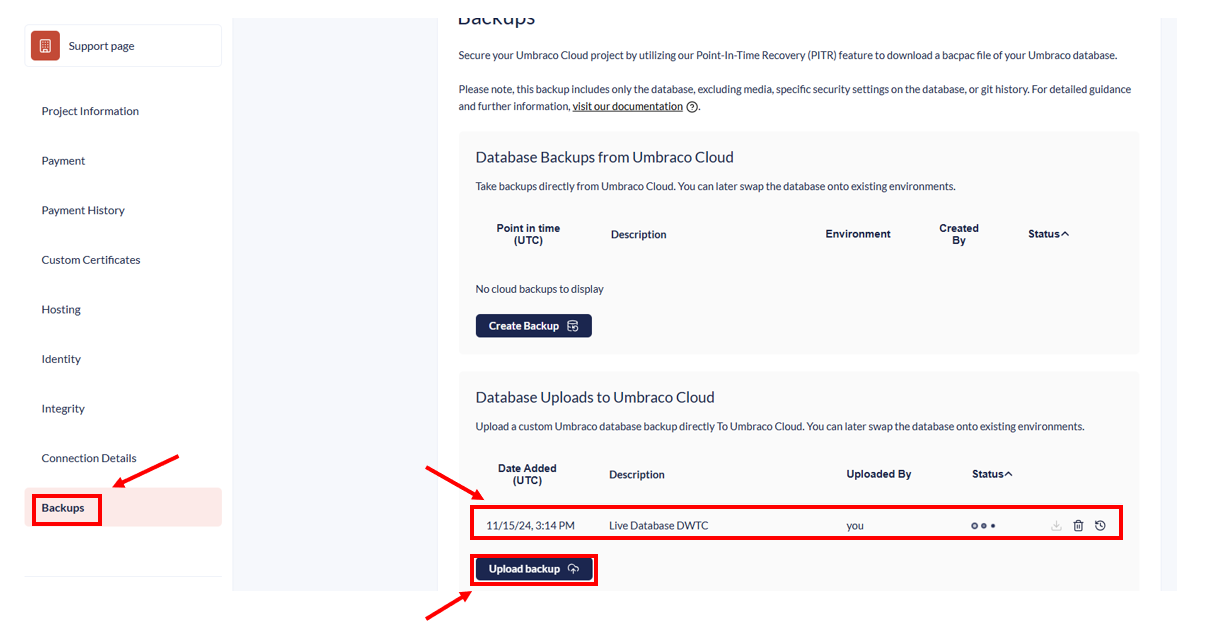
    • What we want to achieve is to move all content nodes and schemas from the Project_source to the Project_target.

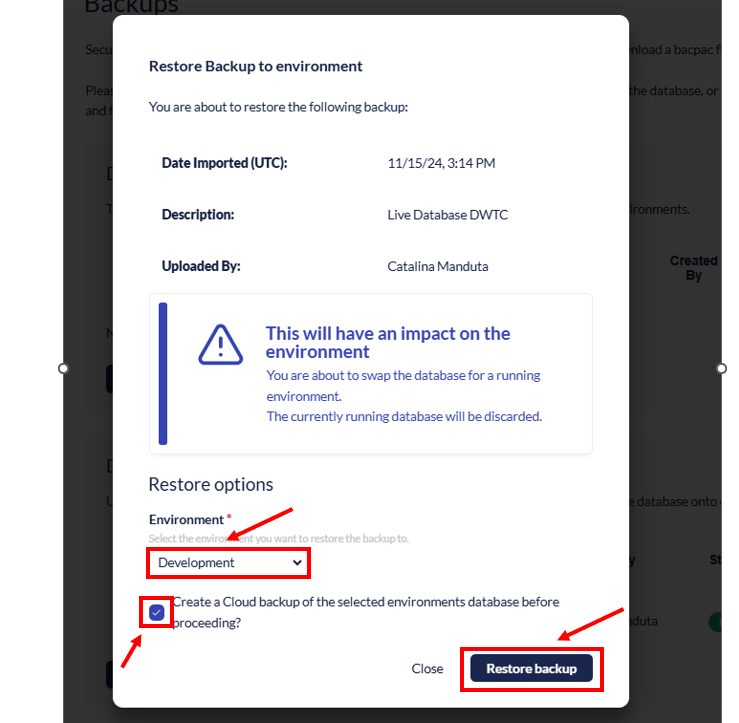
    • Restore the backup on the target environment.

  • After doing this step, make sure to verify that all content appears correctly in the backoffice.

2. Transfer the media files from the Azure Blob Storage of source environment to target environment. To do this:

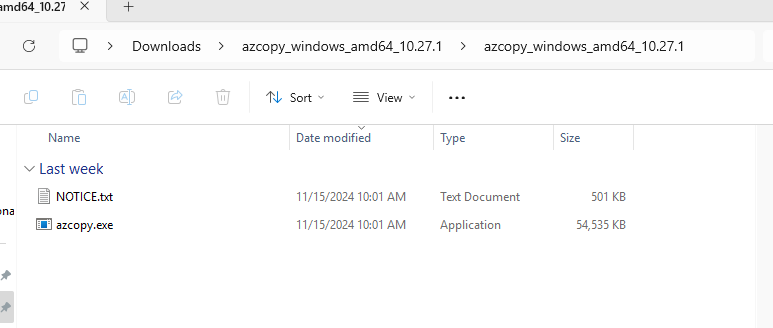
    • Download AZCopy using the provided link. Once downloaded, you will have a zipped file.

    • Extract all files from the zip archive.

    • Open the extracted folder and launch AZCopy through the Command Prompt (CMD).

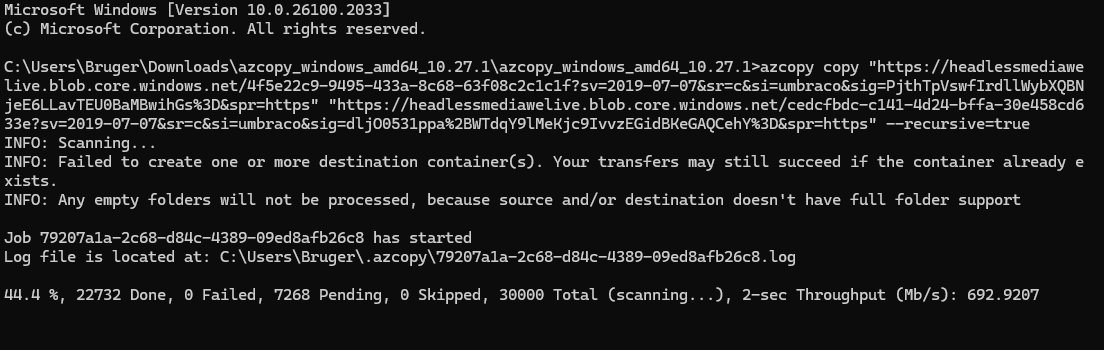
  • Use the following code: azcopy copy "SOURCE" "TARGET" --recursive=true.
  • Replace SOURCE and TARGET with the appropriate links obtained from the connection details page.

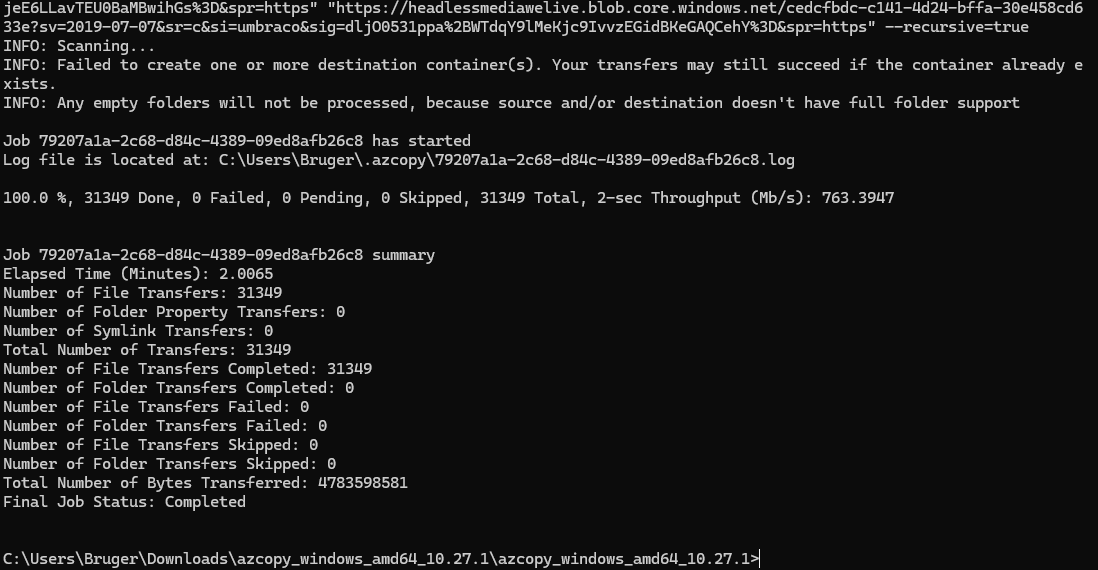
  • When the process starts, it will look something like this:

  • Ensure that the migration is successful by confirming the data is visible and functional in the target environment's backoffice.

Note

If you initially add the media and check the Backoffice (Media section), you will notice that no images are visible.

This occurs because the media is referenced in the database and is only stored in Azure Blob Storage, not directly in the Backoffice.

Once the database has been restored, the media will appear and become visible in the Backoffice.