Setting up a SQL server.

Setting up a SQL server to run a custom database used for .bacpac files

There comes a time when it might be necessary for us to setup our own SQL server in order for us to test a customer's database.

For Windows users, setting this up tends to be a bit easier in some regards because of the native support of SQL Servers and SQL Express.

But, since setting up even SQL Express can be a bit of a hassle, I have here a guide on how to run an SQL server on your PC/Mac by using Docker.

There is a few different steps depending on your OS, so I have created both a Windows section and a Mac section.

Mac

Run SQL Server in a Docker Container (Recommended)

Since you're familiar with Docker, this is the easiest and most reliable way to run SQL Server on a Mac.

Steps:

  1. Install Docker (if not already installed)

    • Download and install Docker Desktop for Mac.

    • Alternatively, you can run brew install docker

    • Check and see if Docker has been installed by typing docker --version 


  1. Run SQL Server Container Open your terminal and run:

docker run -e 'ACCEPT_EULA=Y' -e 'SA_PASSWORD=YourStrongPassword!' \-p 1433:1433 --name sqlserver \-d mcr.microsoft.com/mssql/server:2022-latest

  • Replace 'YourStrongPassword!' with a strong password that meets SQL Server's complexity requirements.

  • You can also change the name “sqlserver” if you want to.

  • This command will:

    1. Pull the SQL Server image from the Microsoft container registry.

    2. Expose SQL Server on port 1433.

    3. Start the container as 'sqlserver'.


  1. Verify That SQL Server Is Running Run:

docker ps

  • If you are able to see your container, that means it is running.

  • You can also open up the Docker Desktop, and see everything from there including restarting/starting the container.


  1. Connect Using Azure Data Studio

  • Install Azure Data Studio.

  • Make sure you also have the extension “SQL Server dacpac extension” (See Step 6)

  • Open Azure Data Studio and create a new connection.

    • Server: localhost

    • Authentication: SQL Login

    • User: sa

    • Password: YourStrongPassword!

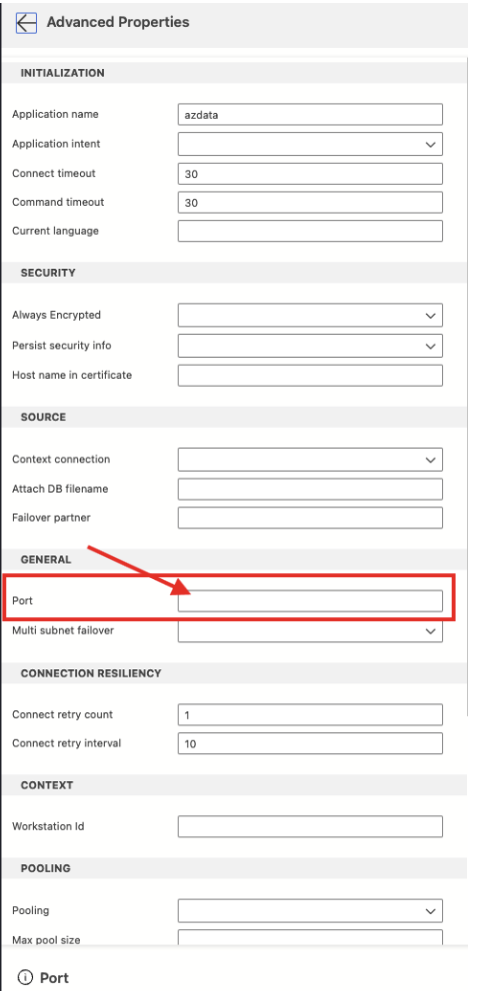
    • Port: 1433

    • Set Trust Server Certificate to True to bypass SSL certificate validation. This is necessary when connecting to a local Docker container

    • In the “Advanced…” tab you need to set the Port to 1433.

    • Then you should be able to press connect and connect to the database.
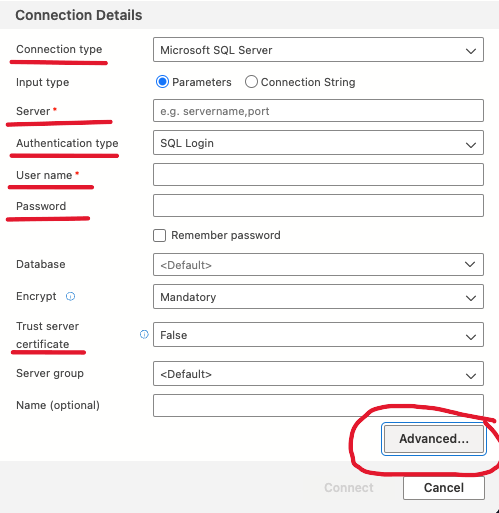
Connection details

Advanced Propeties

  1. Enable Contained Database Authentication (Optional)

If you need to import a .bacpac file, you must first enable contained database authentication.

  • Open Azure Data Studio and connect to your SQL Server container.

  • Open a New Query Window and run the following SQL command:


EXEC sp_configure 'contained database authentication', 1;

RECONFIGURE;

  • Restart SQL Server Container:

    1. Either by the Terminal or via the Docker Desktop App.


docker restart sqlserver


  1. Install SQL Server Dacpac Extension in Azure Data Studio

To import and export .bacpac files, you need to install the SQL Server Dacpac extension.

  • In Azure Data Studio, click on the Extensions icon (or press Ctrl + Shift + X)

  • Search for SQL Server Dacpac.

  • Click Install to add the extension to Azure Data Studio.


  1. Import a .bacpac File (Optional)

If you need to import a .bacpac file into your SQL Server instance, follow these steps:

  • In Azure Data Studio, navigate to the Server tab.

  • Right-click on Databases and select Import .bacpac file

  • Follow the wizard to complete the import process.

Windows

Run SQL Server in a Docker Container (Recommended)

Since you're familiar with Docker, this is the easiest and most reliable way to run SQL Server even on Windows, so you don't haveto deal with setting up SQL Express server.

Steps:

  1. Install Docker (if not already installed)

  • Download and install Docker Desktop for Windows.

  • Alternatively, you can run winget install -e --id Docker.DockerDesktop

  • Check and see if Docker has been installed by typing docker --version 


  1. Run SQL Server Container Open your terminal and run:

docker run -e "ACCEPT_EULA=Y" `  -e "SA_PASSWORD=YourStrongPassword!" `  -p 1433:1433 `  --name sqlserver `  -d mcr.microsoft.com/mssql/server:2022-latest

  • Replace 'YourStrongPassword!' with a strong password that meets SQL Server's complexity requirements.

  • You can also change the name “sqlserver” if you want to.

  • This command will:

    1. Pull the SQL Server image from the Microsoft container registry.

    2. Expose SQL Server on port 1433.

    3. Start the container as 'sqlserver'.


  1. Verify That SQL Server Is Running Run:

docker ps

  • If you are able to see your container, that means it is running.

  • You can also open up the Docker Desktop, and see everything from there, including restarting/starting the container.


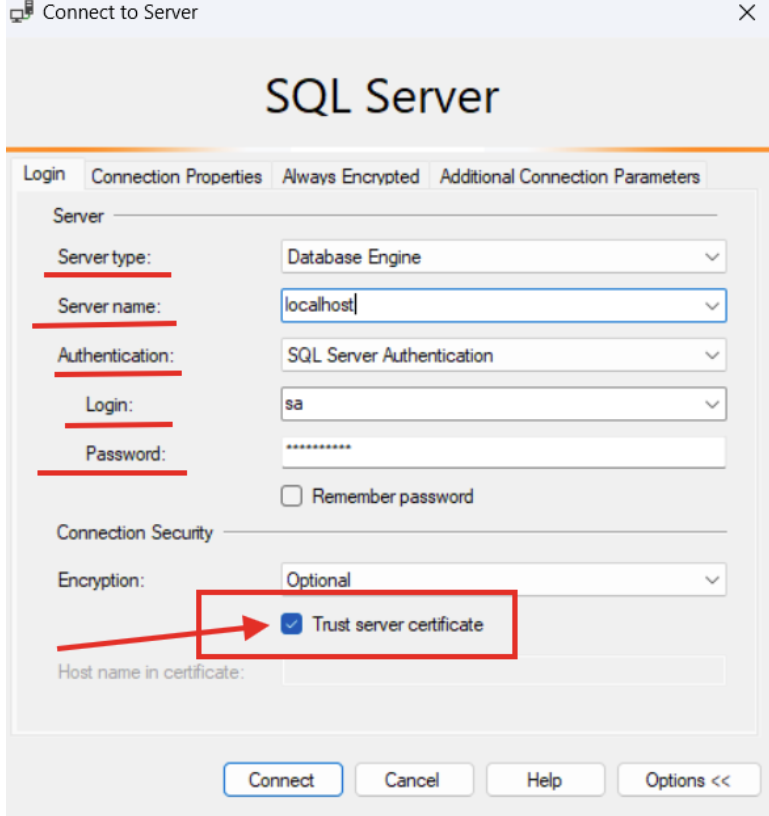
  1. Connect Using SQL Server Management Studio

  • Install Download SQL Server Management Studio (SSMS).

  • Open Azure Data Studio and create a new connection.

    • Server name: localhost

    • Authentication: SQL Login

    • Login: sa

    • Password: YourStrongPassword!

    • Set Trust Server Certificate to True to bypass SSL certificate validation. This is necessary when connecting to a local Docker container

    • Then you should be able to press connect and connect to the database.
Conection details

  1. Enable Contained Database Authentication (Optional)

If you need to import a .bacpac file, you must first enable contained database authentication.

  • Open SQL Server Management Studio and connect to your SQL Server container.

  • Open a New Query Window and run the following SQL command:

 EXEC sp_configure 'contained database authentication', 1;RECONFIGURE;

  • Restart SQL Server Container:

    1. Either by the Terminal or via the Docker Desktop App.


docker restart sqlserver

Connecting your local Umbraco project to your database

Connecting your local Umbraco project to your database

In your Umbraco project, navigate to the appsettings.json file.

Open that:

  • Inside of the appsetting.json, you need to add this outside of Umbraco.CMS

 "ConnectionStrings": { "umbracoDbDSN": "server=(the server);database=(the db);user id=(the user);password='(the password)';Connection Timeout=3600" }


  1. (the server) = the name of your server, if you didn’t change it earlier, it should be sqlserver.

  2. (the db) = the name of the database you are trying to connect to, you would have had to set the name whenever you imported the bacpac file.

  3. (the user) = the user ID for the database, which will be “sa”.

  4. (the password) = the password you set at the beginning of the setup.

  5. The connection timeout is optional, but can be useful for when you need to migrate a database to a newer version.