Licenses

Creating Licenses for Umbraco Products

Background

We have introduced a new method of licensing Umbraco products, allowing us to make online checks and thus create and enforce trial and recurring licenses.

Currently, the service is used by Umbraco Workflow 11.  Over 2023, we plan to roll this out to the other Umbraco commercial products and introduce more automation into the process of creating and updating licenses.

Currently, though the process is manual - hence this document detailing how to create and update a license for one of our products.

The solution uses a third-party service - Cryptolens - and it's via their web portal that licenses are managed.

Managing Licenses

Accessing the Web Portal

Login to the Cryptoplens portal here.


If you need an account, reach out to Andy, Mathias or Nathan.

Creating New Products

This isn't an operation that needs to be done on a regular basis, but for completeness we'll document it here.


  • Click List all products

  • Click Create new product

  • Complete the name and description

  • Having returned to the product listing, click to view the details of the created product.

  • Click on Edit Feature Names and ensure the following are ticked:

    • Treat all licenses as time-limited

    • Block expired licenses

Creating a License Key

Within each product, license keys can be created.

  • From the product page click Create a new key

  • Set the number of days following which the license will expire.

  • Tick the Time Limit (F1) checkbox.

  • Select the customer or, if a new customer, add their name, email and company name.

  • Once the key is created, return to the list of keys and click the key to edit it.

  • Click on add/edit data objects.

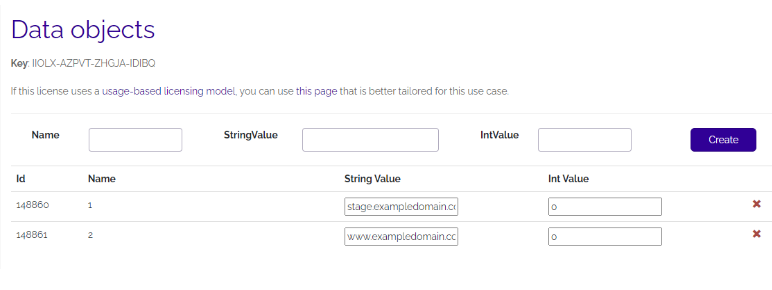
  • Here the domains for the license can be set. Wildcards via an * are supported. The domain should be provided as the string value. The name of the data object isn't important, but has to be unique.

  • Note the domain MUST be the application URL, not a CNAME/alias

  • Make sure the domains are sufficiently restricted to what the customer needs - e.g. creating *.umbraco.io will work for all Cloud sites, but we wouldn't want that as the same license could then be reused on multiple websites.

Handling Agency Licenses

Certain Umbraco products are available on an agency license - currently Umbraco UI Builder.  Setting up these licenses follows almost the same process but with a couple of differences.

We create a single license per agency, and add all of their customer site domains to that single license.

However, in order to avoid exposing customer A's domains to customer B, we need to do two things differently:

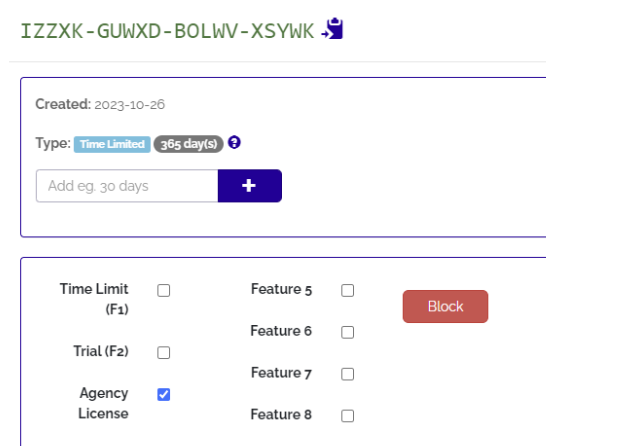
  • When creating the license tick the third feature flag labeled "Agency LIcense"

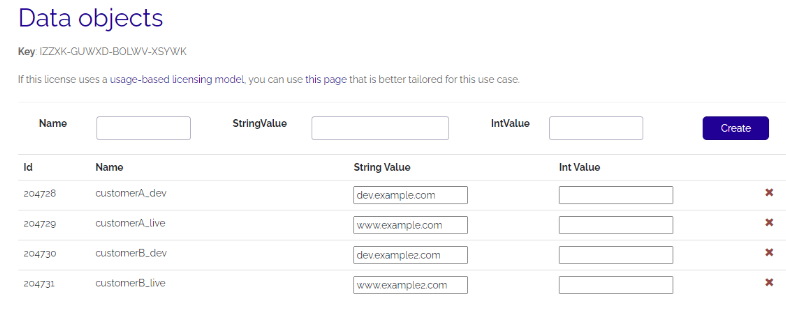
  • When adding the domains to the license via the "Data Objects" screen, the name can be used to indicate the customer.  We do this by providing a name with a prefix.  It's easiest to demonstrate with an example:

  • In this screenshot we have a single agency license, with two customer sites, each with two domains.

  • We set a prefix prior to the "_" character in the name field.  So each customer should have the same prefix (e.g. "customerA_dev", "customerA_live").

  • With that in place we can make sure to only expose the domains relevant to each customer when a validation request is made.

Extending a License Key

A license key can be extended following receipt of a subscription payment for a customer.

  • Find the license key under the product and click to edit it.

  • Type the number of days to extend the license for and click the + button.

  • If the license has expired and been blocked click the Yes link under the Block column to unblock it again.

Note

Note that this is just for information and doesn't affect the license behaviour.  Please note also this has a different meaning than the "agency license" for UI Builder - where we have a single license an agency can use for all projects.  Here it's just a restricted license available to agencies for their own use.

Managing Products

Adding a Product ID to the Validation Services package

With a Product defined in CryptoLens you’ll also need to define the product in the Umbraco.Licenses.ValidationService project on GitHub to be able to map the the integer product ID generated in CrypoLens to a friendly string based product ID for use in an app settings file.

To define a product ID in the validation services package, create a fork of the package repository at https://github.com/umbraco/Umbraco.Licenses.ValidationService

Create a new feature branch for your new product and make the following changes.

  • Update src/Umbraco.Licensing.ValidationService.Functions/Constants.cs and add a product constant for the friendly alias you want to use in app settings

  • Update

src/Umbraco.Licensing.ValidationService.Functions/Services/CryptoLens/Constants.cs and add a product ID constant for the integer product ID provided by CryptoLens

  • Update 

src/Umbraco.Licensing.ValidationService.Functions/Services/CryptoLens/CryptolensProductIdMapper.cs and add a mapping from the friendly string product ID to the CryptoLens integer product ID

  • Update

tests/Umbraco.Licensing.ValidationService.Tests/Functions/Services/CryptolensProductMapperTests.cs adding the product ID mapping as a test case

With these changes made, commit them to your feature branch and push to GitHub and finally submit the feature branch as a PR for review.

Engage Licenses

Handling Umbraco Engage Licenses

Umbraco Engage licenses are prepared using the same process as already described, but with a few additions, where we support:

  • Different features available on the license.

  • Tracking of an agency license.

  • The number of page views supported by the license.

To enable features, click the appropriate checkboxes on the license:

In practice we only sell licenses for analytics only or all features - so you'll only ever tick just the first or all three feature checkboxes.

If the product has been sold as an partner license, tick the "Is Partner" box:

The number of page views supported by the license is entered as a variable under "Data Objects".  The variable should have a name of #pageViews and a value of the appropriate number.